Project Retrospective: Rebuilding My Portfolio Navigation for Clarity
For a long time, the navigation on my portfolio behaved like a drawer full of cables: everything was in there, but finding the one I needed took patience. The site had grown one page at a time. Each new project, note, or experiment earned its own place in the header. That felt logical while I was building it. It felt like a maze to anyone visiting for the first time.
This retrospective looks at the before-and-after of that navigation redesign. It covers the usability problems I found, the changes I made, and the parts I would handle differently next time. No dramatic rebuild, no new visual identity. Just a quieter, clearer route through the work.
The old header had eight top-level links: Home, About, Work, Projects, Case Studies, Notes, Blog, and Contact. On paper, each one had a purpose. In practice, several of them meant almost the same thing. Work and Projects both led to portfolio material. Notes and Blog both held writing. Case Studies sat between the two, close enough to confuse anyone who did not already know how I organized my files.
The dropdown under Work made things worse. It held a long list of individual projects, sorted roughly by when I had added them. Some titles were clear. Some were internal shorthand that made sense only to me. Hovering over the menu was required to open it, and the interaction was fragile on touch screens. The current page was rarely marked. Contact sat at the far right, small and easy to miss.
None of this was malicious. It was the natural result of adding one useful thing at a time without stepping back to ask whether the whole set still worked together.
I did not have enough traffic to run a formal experiment, and I did not want to pretend otherwise. Instead, I used a short usability checklist and watched a few people open the site cold. I also paid closer attention to my own habits: where I clicked, where I hesitated, and where I used the browser back button because the site had not given me a better option.
The same problems kept appearing:
The most useful test was simple: ask someone to find a specific project without giving them its exact title. If they opened About first, or paused over Work and Projects, the menu was doing too little work.
The new structure is deliberately small. The header now has four main destinations: Work, About, Notes, and Contact. The logo returns to the home page. That is the whole top level. Everything else has a home inside one of those sections.
Work now holds projects, case studies, and selected experiments. Notes holds shorter writing, process logs, and blog posts. About covers my background and approach. Contact is a visible button in the header and a clear block in the footer. The old labels disappeared because they described my folder structure, not a visitor’s job.
I also added a small current-section state. When someone is inside Work, the Work link stays marked. On project pages, a short breadcrumb shows the path back to the full list. That sounds minor, but it removes the “where am I?” moment that used to happen after every click.
The mobile menu now opens as a full-screen panel with large text, a clear close button, and four choices. The page behind it no longer scrolls. Links are reachable by keyboard, focus styles are visible, and the dropdown pattern is gone. If a menu needs a hover to survive, it is not ready for touch.
I kept the visual language calm. No new colors, no animation for its own sake. The navigation should feel like a signpost, not a performance.
The biggest change is not visible in a screenshot. Visitors no longer have to learn my content model before they can use the site. They see Work and they click Work. They see Contact and they know where to go. The portfolio still contains the same material, but the route to it is shorter.
On desktop, the header feels lighter. On mobile, the menu is easier to dismiss and harder to get trapped in. The footer now carries contact details and a short site map, which helps anyone who lands on a deep project page and wants a way out. I also added a skip link for keyboard users, because a long header should not be a toll booth.
One unexpected benefit was editorial. With fewer sections, I had to decide what each piece of content was actually for. A half-finished experiment no longer needed its own top-level label. It could live inside Notes as a process entry, or inside Work as a small case study. The navigation stopped reflecting every passing idea.
The first lesson is that navigation is not a list of pages. It is a set of promises. Every label tells a visitor what they will find. If two labels make the same promise, one of them is probably unnecessary.
The second lesson is that my own familiarity is a bad testing tool. I knew that Projects meant “selected client work” and Work meant “everything else.” No one else did. Plain language beats internal shorthand every time.
The third lesson is that mobile menus deserve the same attention as desktop layouts. A cramped overlay with a tiny close button is not a neutral design choice. It is a small obstacle placed in front of every phone visitor.
If a visitor has to guess what a menu item means, the menu is not clear yet. It is only organized.
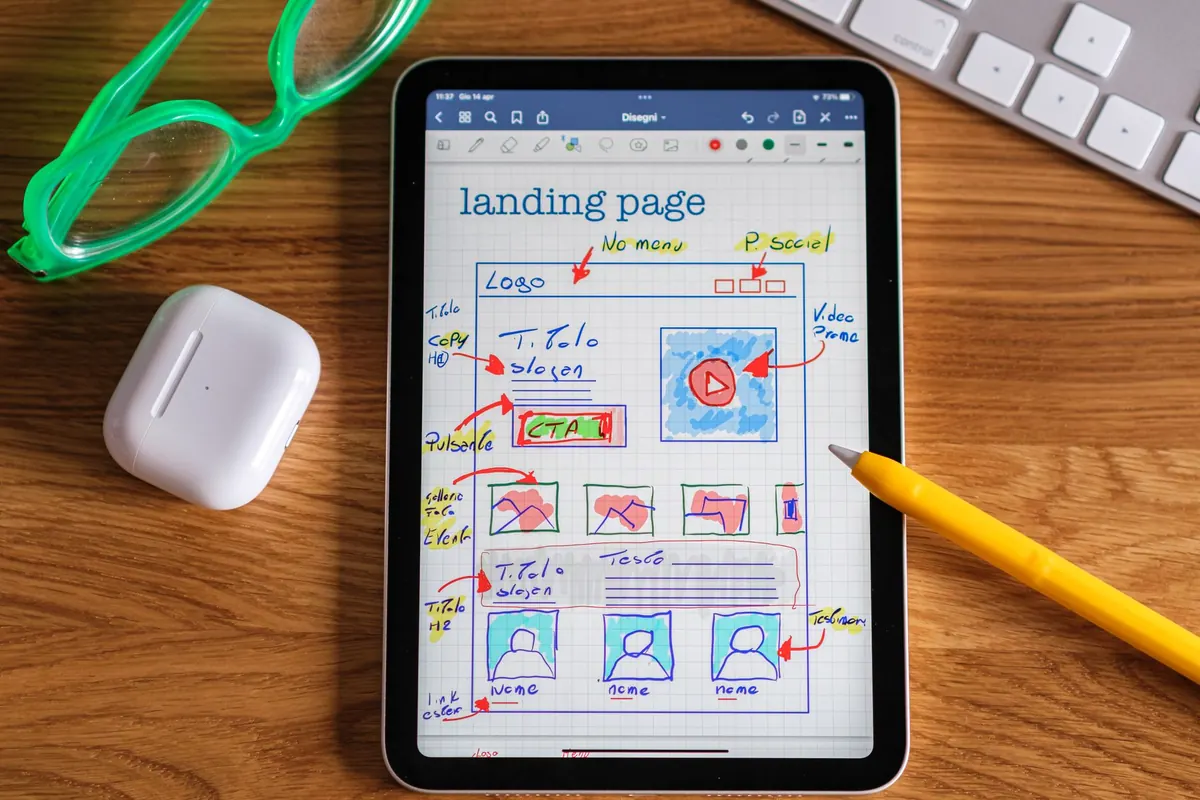
I would also handle one thing differently next time: I would sketch the navigation on paper before adding pages, not after. A simple site map with four boxes would have shown me the overlap between Work and Projects long before it reached the browser.
If your portfolio navigation has grown by accident, start with a short audit. List every top-level item and write one sentence describing what a visitor will find there. Merge anything that repeats. Rename anything that only makes sense to you. Then test the menu on a phone, with a keyboard, and with someone who has never seen the site.
Keep the first level small. Show the current section. Make contact easy to find. Use hover menus only when you have a solid keyboard and touch fallback. And remember that clarity is not a constraint on personality. It is what lets the personality of the work come through without a visitor getting lost on the way in.
Photo: Davide Baraldi / Pexels